How to Install Java Apps OTA to the LG Rumor Touch With MiniCommander-Willie Files Episode 2

In the Willie Files Episode 1, we explored how to download a JAR on your phone and extract the Manifest File to create a JAD using JTextLite.
In Episode 2, we will discuss Willie's pet app, MiniCommander.
It is a full touchscreen (although better used with a stylus or a makeshift stylus-such as a mechanical pencil without the led or a zip tie-yeah, I get creative) file manager, ftp, text editor, etc.
Willie recommends using MiniCommander as the primary app to create JAD files while he still prefers JTextLite as the app to edit/trim the JAD file.
If you are completely lost at this point, please read all the "Prerequisite Readings" linked to below.
To get MiniCommander and JTextLite, please visit my Mediafire folder below:
Prerequisite Reading
- LG Rumor Touch- Apps, Ringtones, Wallpapers, Movies...
One of the fundamental problems of installing 3rd party apps on the LG Rumor Touch has been the need for a PC to create JADs from JARs and to be able to download the JARs (blocked on Lg Rumor Touch). Willie... - My App Won't Install on My LG Rumor Touch (Virgin Mo...
In short: MY APP WON'T INSTALL You may be one who has received an error message saying that - Over the Air (OTA) App installs on Virgin Mobile or ...
Easy PC Independent OTA installation of apps on the LG Rumor Touch with these new breakthrough apps. - Install Non-Virgin Mobile and Sprint Java Apps and G...
Install 3rd party apps on the LG Rumor Touch mobile phone (3g mobiles) from Virgin Mobile or Sprint. Download apps from my personal collection for free. Links to best websites to get apps.


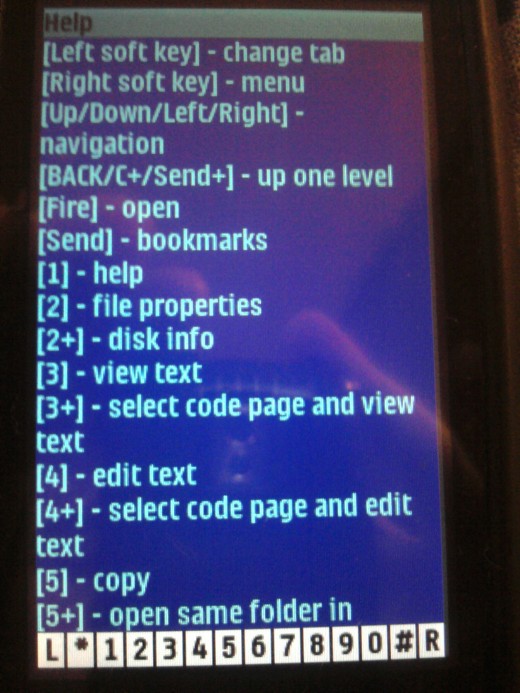
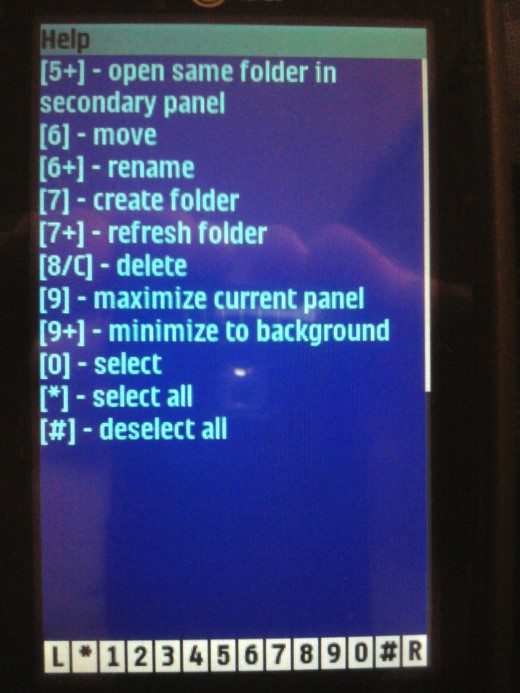
Meet MiniCommander
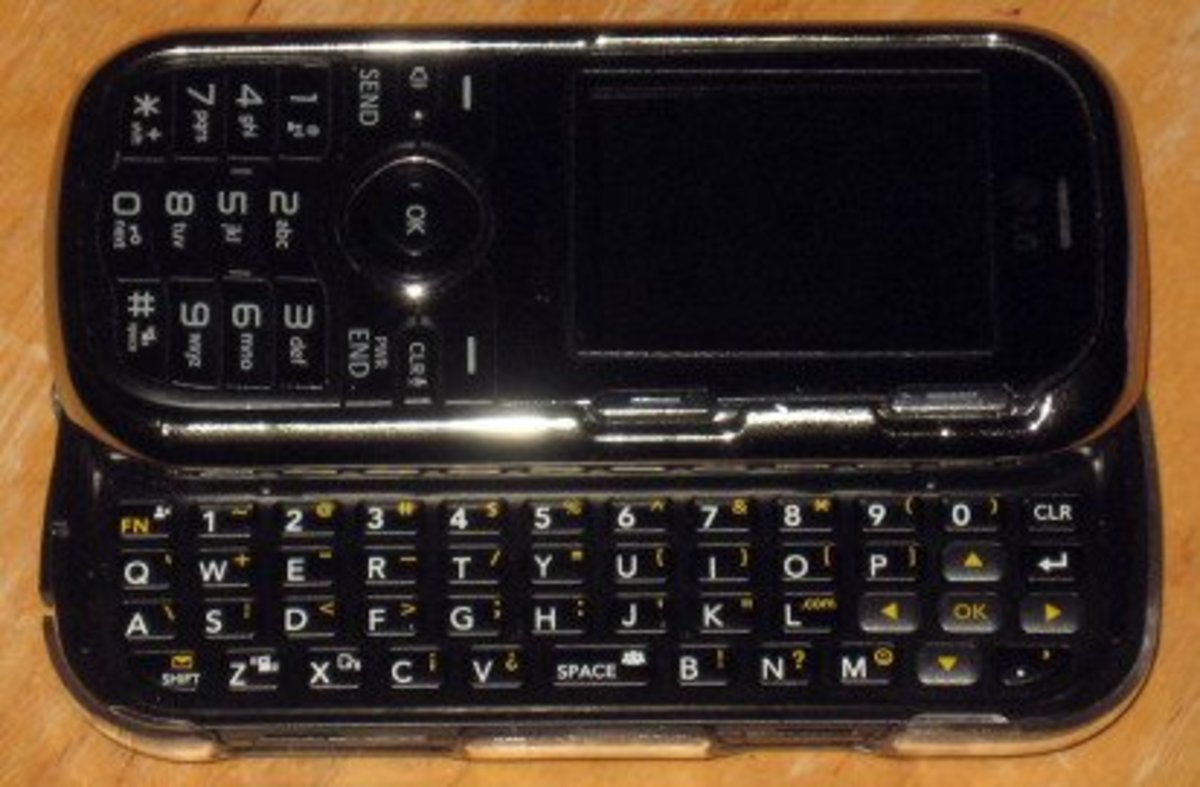
- You will use the toolbar at the bottom of the screen & You will use your pull out keyboard as well.
- First thing after launching, select "L" to get "FullScreen View" instead of a dual pane view.
- If you press "1", it will bring up the "help" menu where you can see some basic commands. For our purposes, you will not need this, but if you want to use this for other purposes, I'd give it a look over.
- If you want to go back to the file menu at any time, select "L".
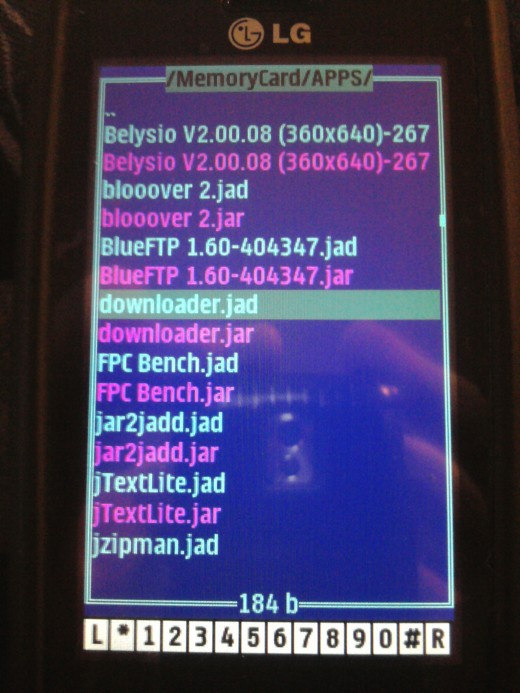
Step One
- Navigate to your APPS folder.
- Make sure you have a JAR waiting to get a JAD living in there.
- Select your JAR and double tap "R".
- This should bring up a file menu.
- From your pulled out keyboard, select "1" and then "6".
- This creates a JAD.
Editing the JAD
Click thumbnail to view full-size


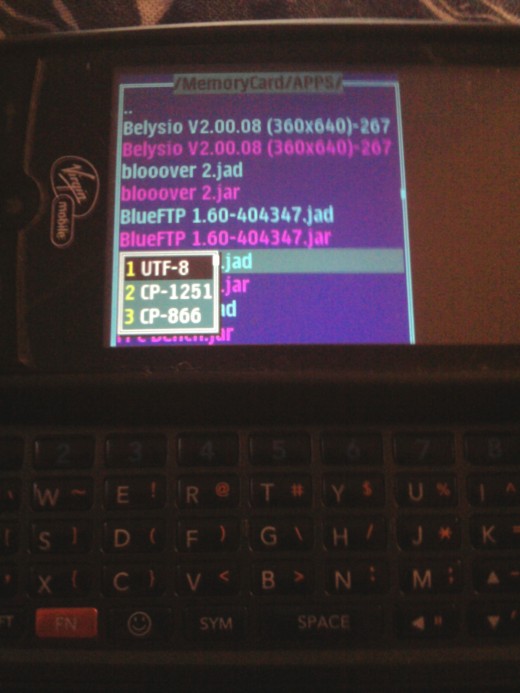
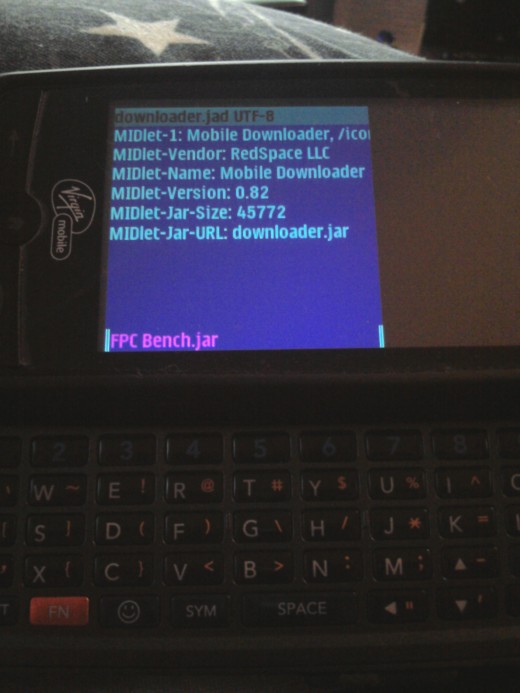
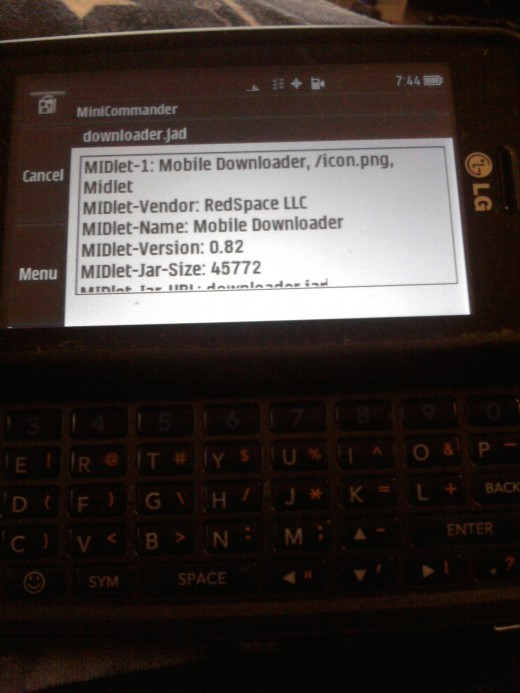
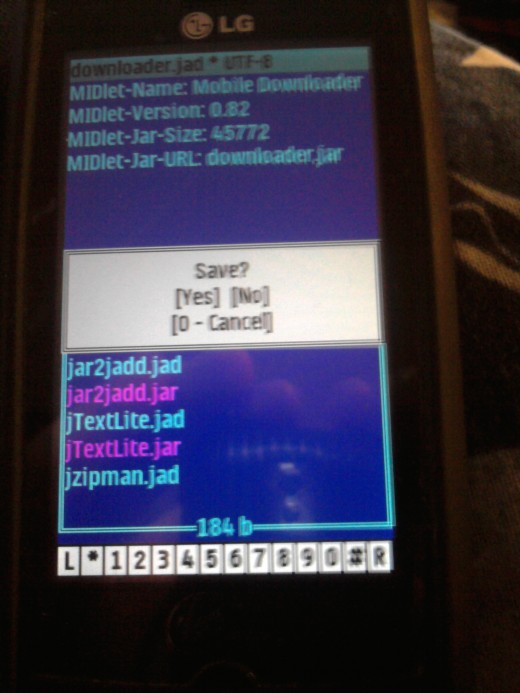
Edit the JAD (if necessary)
- Select your new JAD, press "5" on pulled out keyboard.
- This will bring up a three choice menu-on the keyboard, select "1".
- In the next screen, press "5" to take you to the text editor.
To see what a JAD needs to look like see:
Things to NEVER DO:
- Press "8" unless you want to delete something forever and ever.
- Forget that this is a real file manager and can really screw stuff up if you delete the wrong thing or move something by accident. I highly recommend making a backup if you are able to do so before messing around.

Related

How to Easily Create Android Apps With B4X

Microsoft's Tool to Restore a Windows Live OneCare Backup
How to Best Use the Nexus Mods Website for Skyrim Mods as Well as Fallout 3, Fallout New Vegas, Dragon Age and Oblivion
LG Cosmos Transfer Files Pics and Ringtones to PC

How to Install Custom Content in Sims 3 (PC & Mac)